# TẠO MỚI NOTEBOOK(Sổ tay)

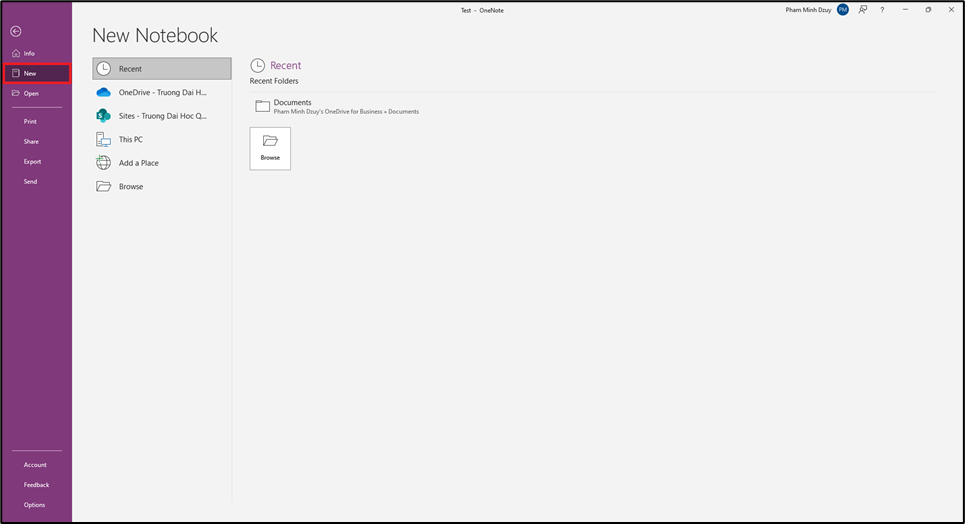
**Bước 1**: Mở OneNote --&gt; chọn File --&gt; New

[![image.png](https://kb.umt.edu.vn/uploads/images/gallery/2025-11/scaled-1680-/JgXPxf31hIS5d7RV-image.png)](https://kb.umt.edu.vn/uploads/images/gallery/2025-11/JgXPxf31hIS5d7RV-image.png)

**Bước 2:** <span lang="vi" style="font-size: 12.0pt; line-height: 115%;">Chọn nơi có thể lưu Notebooks (Ví dụ: OneDrive) hoặc trên máy tính <span style="mso-spacerun: yes;"> </span>cá nhân (This PC).</span>

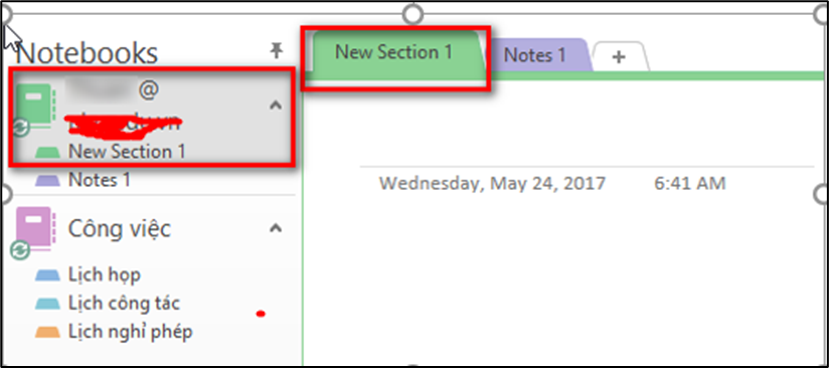
<span lang="vi" style="font-size: 12.0pt; line-height: 115%;">**Bước 3:** Sau khi lưu thành công, sẽ thấy Section mới tạo được</span>

[![image.png](https://kb.umt.edu.vn/uploads/images/gallery/2025-11/scaled-1680-/IKO1jcOERyXIeRKE-image.png)](https://kb.umt.edu.vn/uploads/images/gallery/2025-11/IKO1jcOERyXIeRKE-image.png)

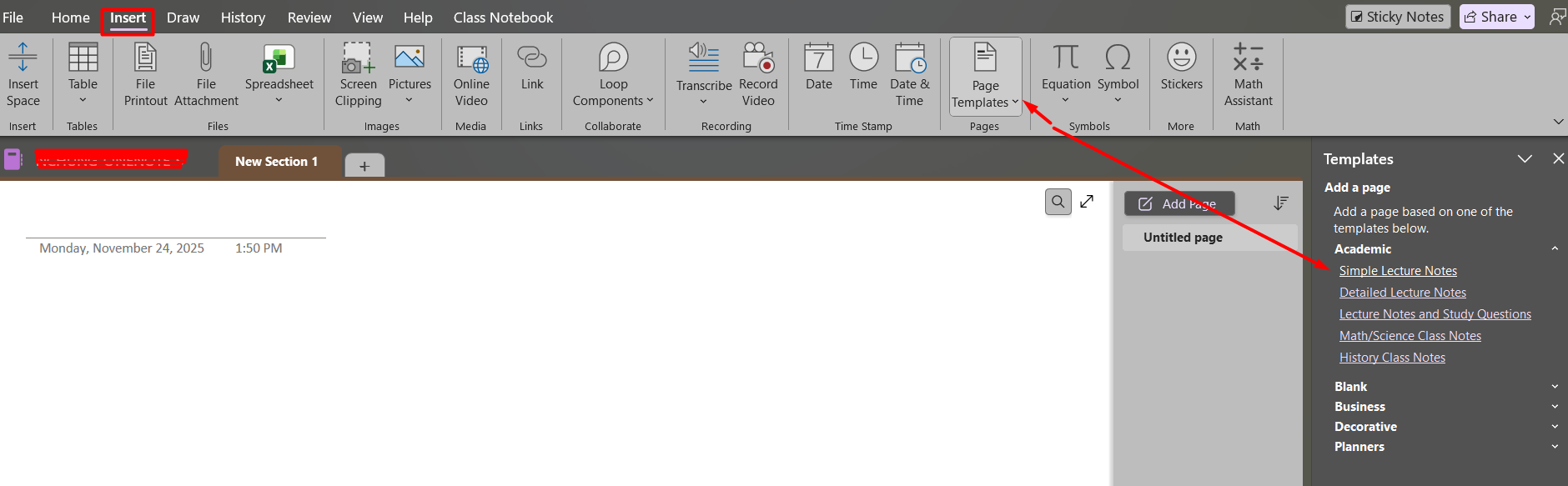
<span lang="vi" style="font-size: 12.0pt; font-family: 'Times New Roman',serif; mso-fareast-font-family: 'Times New Roman'; mso-ansi-language: #002A; mso-fareast-language: EN-US; mso-bidi-language: AR-SA;">**Bước 4:** Mặc định section mới là trang trắng, nếu thích trang trí có thể chọn các mẫu <span style="letter-spacing: -3.1pt;"><span style="mso-spacerun: yes;"> </span></span>có sẵn trong một trang mới bằng cách chọn **Insert -**&gt; **Page Templates.**</span>

[![image.png](https://kb.umt.edu.vn/uploads/images/gallery/2025-11/scaled-1680-/TSdvPtHZlws9UIZs-image.png)](https://kb.umt.edu.vn/uploads/images/gallery/2025-11/TSdvPtHZlws9UIZs-image.png)