# SIS FACULTY (Student Information System)
# ĐĂNG NHẬP HỆ THỐNG
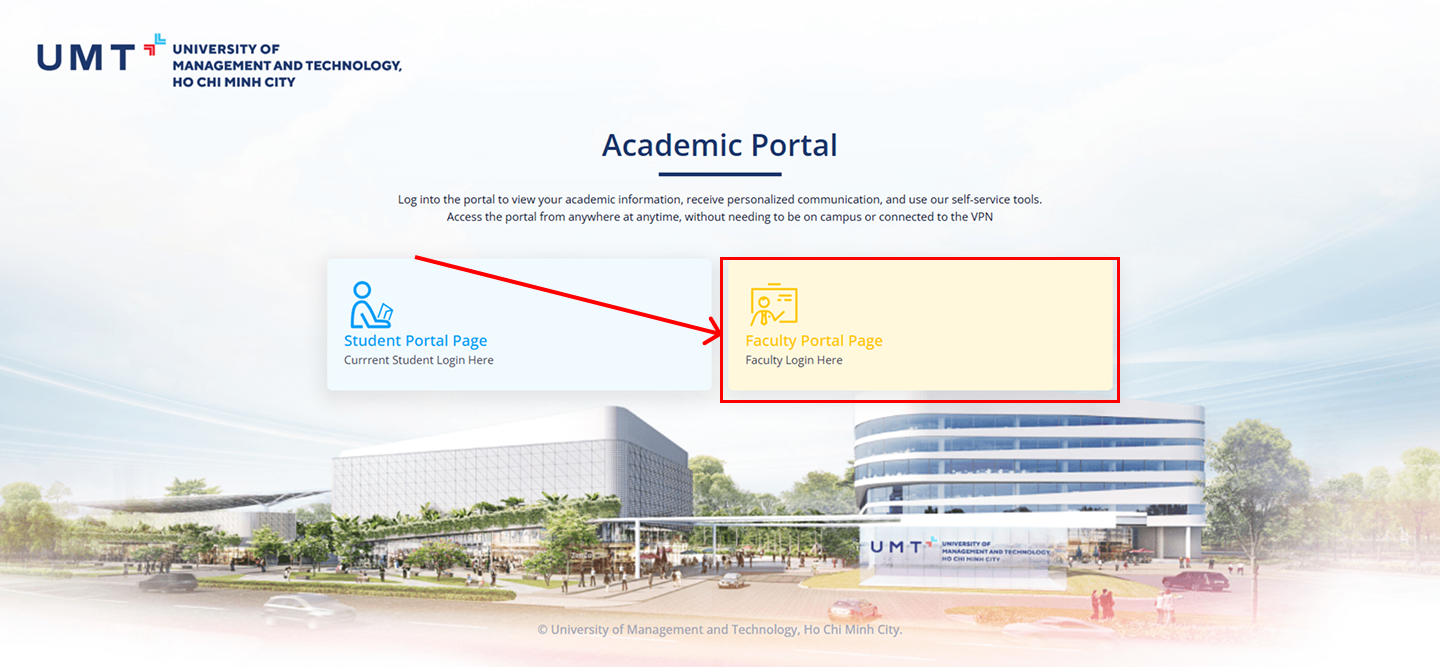
**Bước 1:** Truy cập liên kết: [https://sis.umt.edu.vn](https://sis.umt.edu.vn) => Màn hình yêu cầu đăng nhập hệ thống xuất hiện => Lựa chọn **Faculty Portal Page.**
[](https://kb.umt.edu.vn/uploads/images/gallery/2025-11/tcGA2zZKgfK5OeLT-login.png)
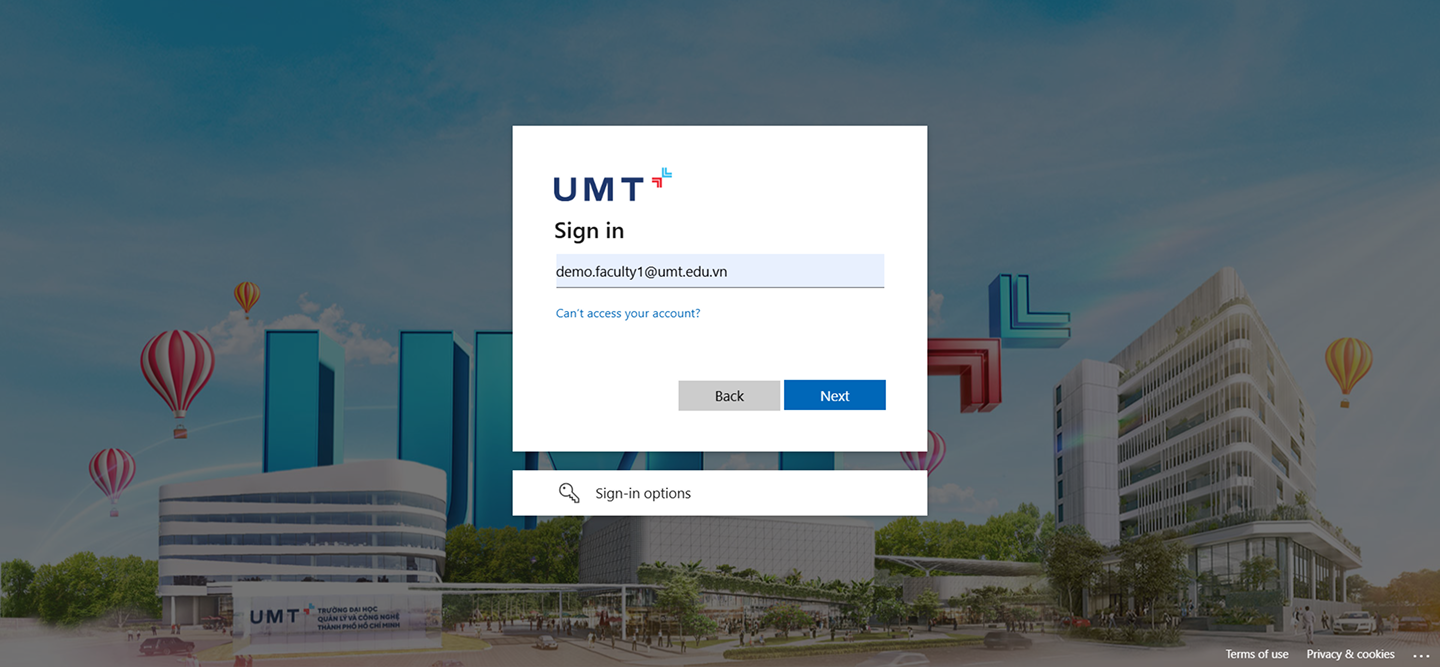
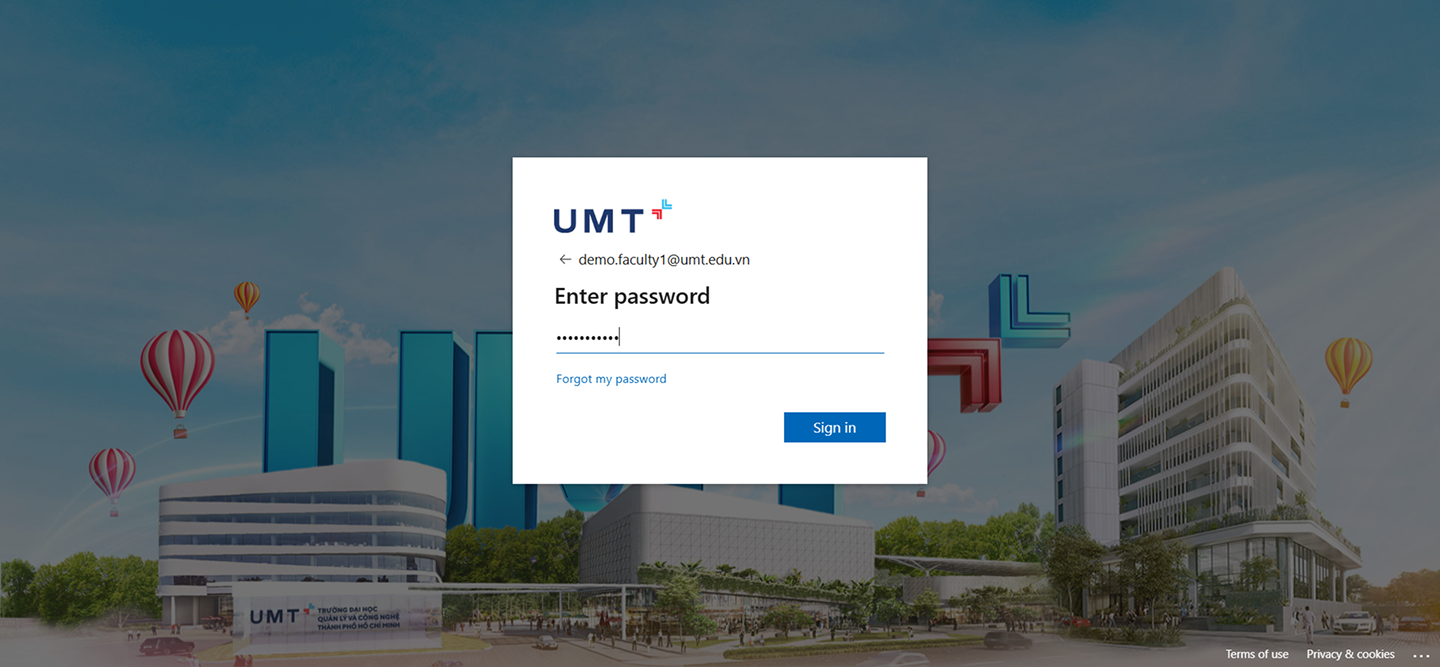
**Bước 2:** Một hộp thoại yêu cầu nhập tài khoản Office 365 xuất hiện. Giảng viên sẽ sử dụng email có phần mở rộng là **@umt.edu.vn** đã được cấp để truy cập hệ thống.
[](https://kb.umt.edu.vn/uploads/images/gallery/2025-11/XFxHdhWj9AKAg7KA-sign-in.png)
[](https://kb.umt.edu.vn/uploads/images/gallery/2025-11/pFrv2k6MvZlm4Q8I-sign-in-pass.png)
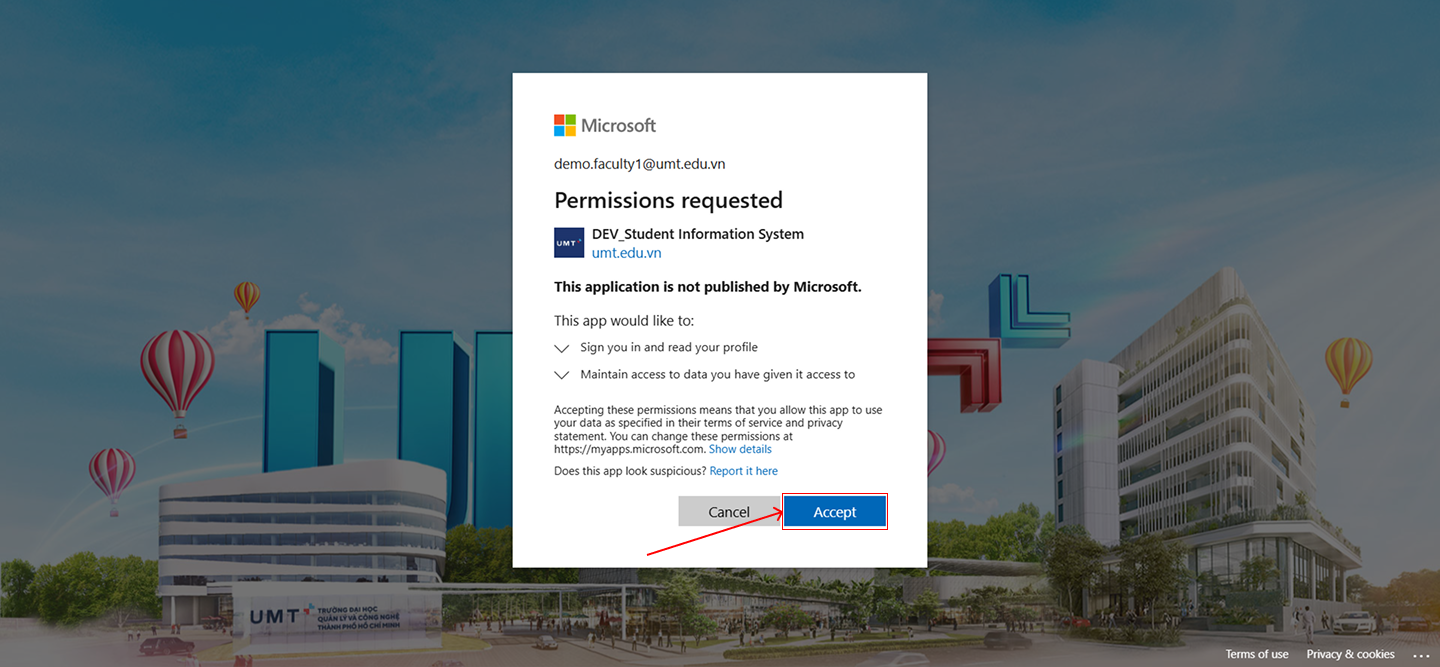
**Bước 3:** Cấp quyền cho trang web => Chọn **Accept**
[](https://kb.umt.edu.vn/uploads/images/gallery/2025-11/78822PNLRLNmDwlg-sign-in-permit.png)
**Bước 4:** Xuất hiện trang chủ như hình dưới:
[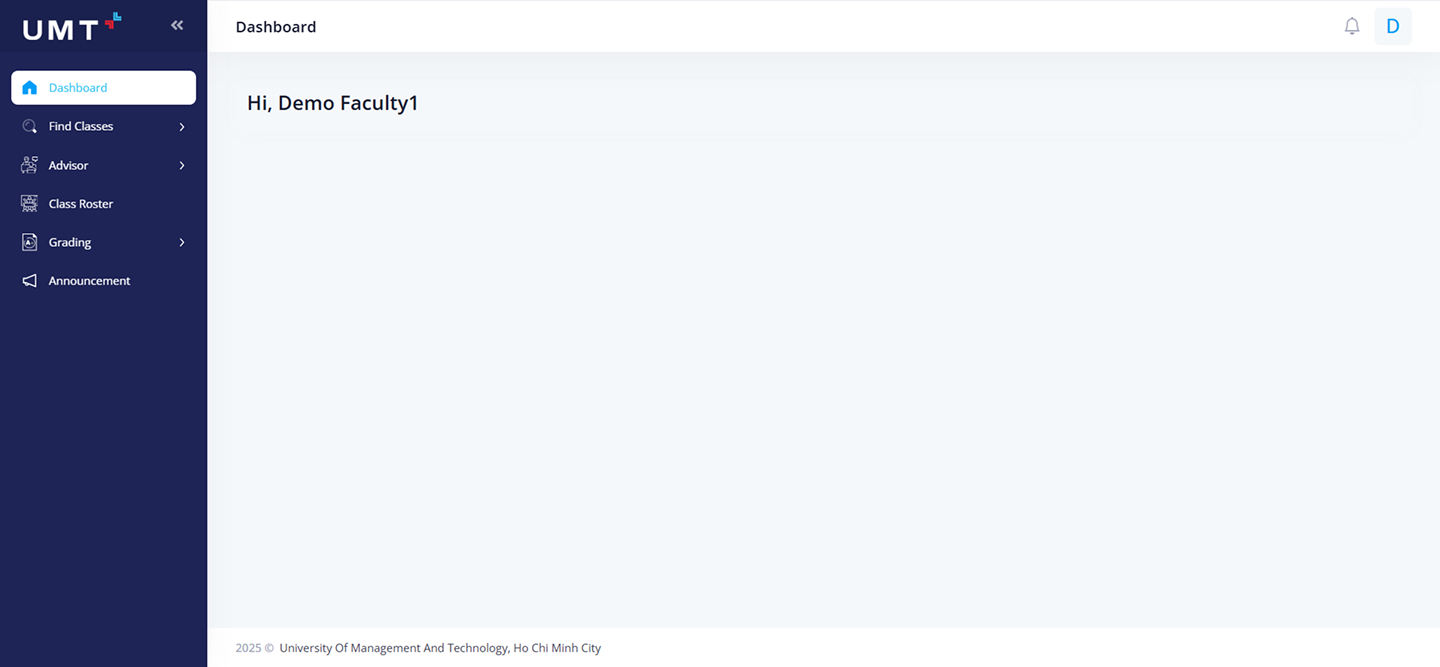](https://kb.umt.edu.vn/uploads/images/gallery/2025-11/nrvCSTe0F5PoYaUM-dashboard.png)
# TÌM KIẾM LỚP HỌC
**Bước 1:** Chọn **Find Classes** trong menu bên trái
[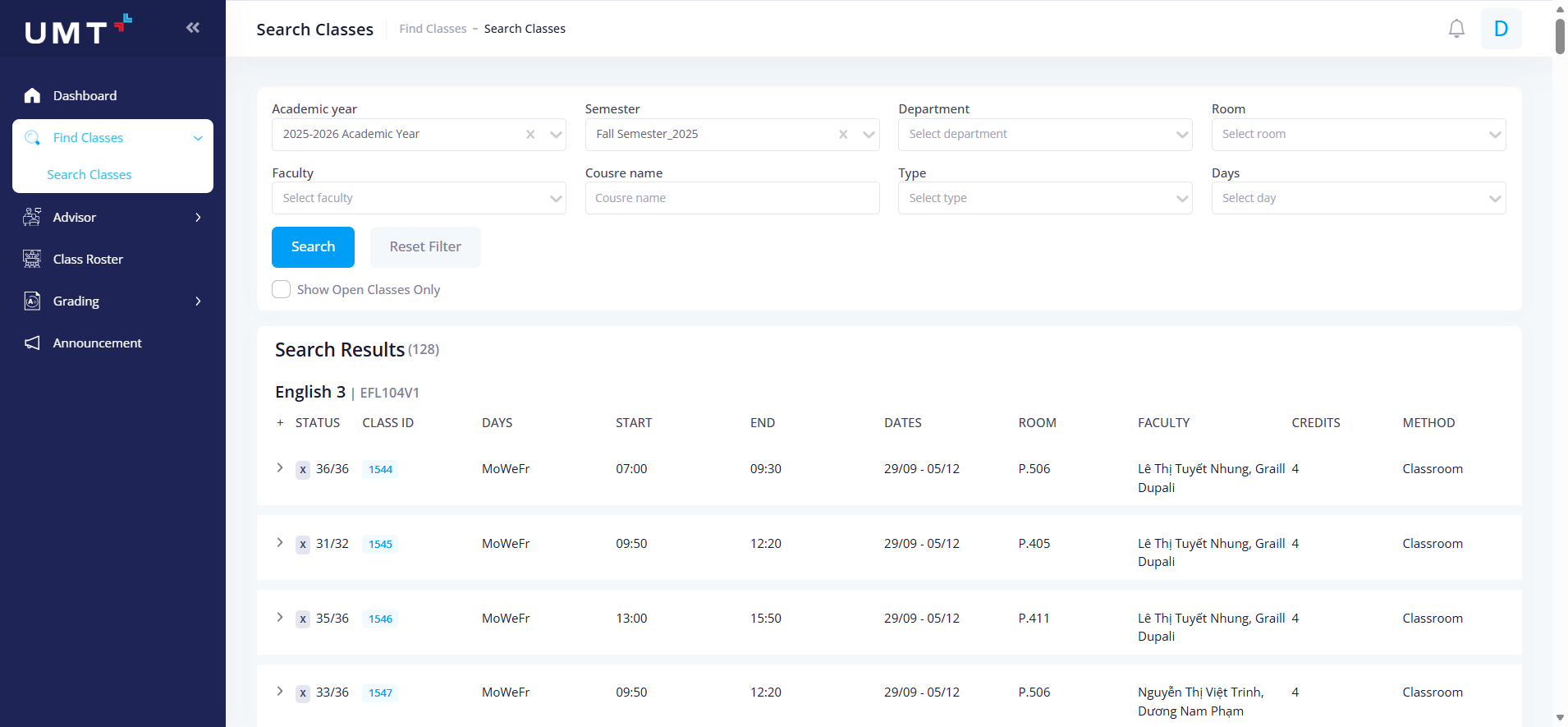](https://kb.umt.edu.vn/uploads/images/gallery/2025-11/6KITUqkrhHYg5TYd-image.png)
**Bước 2:**
[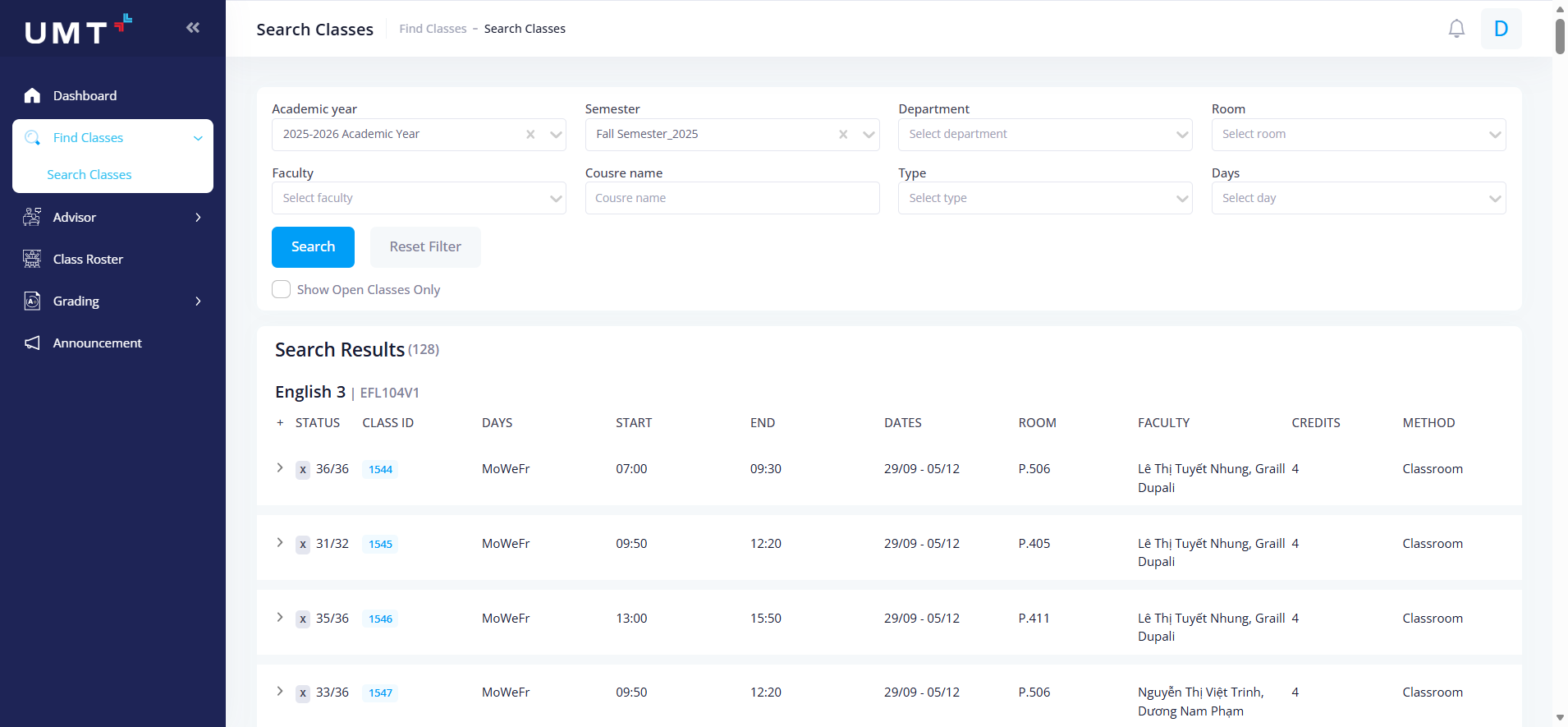](https://kb.umt.edu.vn/uploads/images/gallery/2025-11/OhQ5CeENipbNKg0O-image.png)
**Bước 3:**
# ĐIỂM DANH LỚP HỌC
**Bước 1:** Chọn **Class Roster** ở menu bên trái
[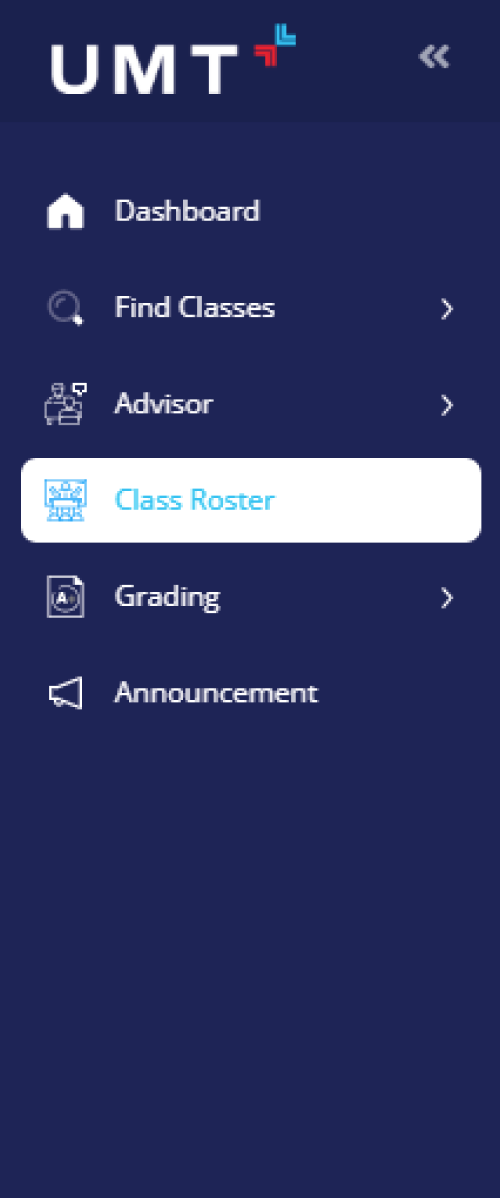](https://kb.umt.edu.vn/uploads/images/gallery/2025-11/1q2zmCWiUiTeZEml-image.png)
**Bước 2:** Chọn vào lớp bằng cách ấn nút [](https://kb.umt.edu.vn/uploads/images/gallery/2025-11/AxQO1a4cHJcp5WCf-image.png) ở bên cột **Action**
[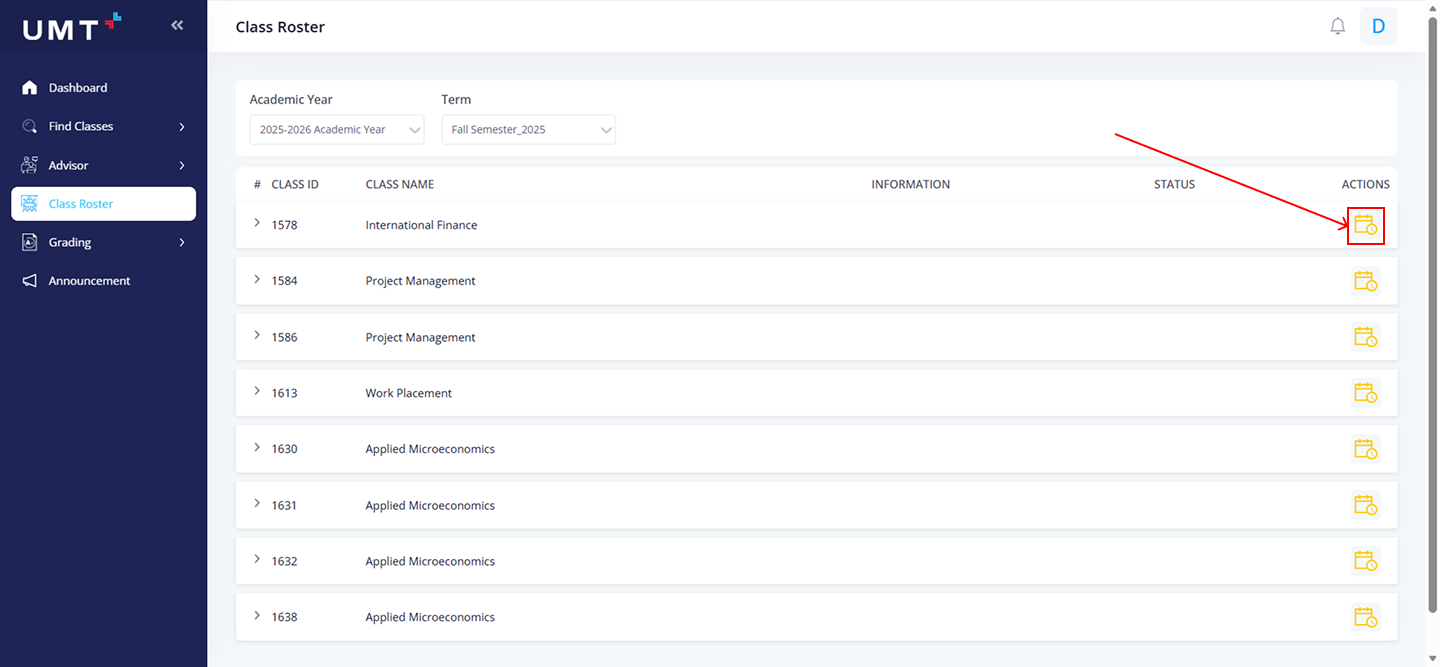](https://kb.umt.edu.vn/uploads/images/gallery/2025-11/vnoBoybXoI6AJtDo-calssr1.png)
**Bước 3:** Vào lớp chọn điểm danh cho từng sinh viên
[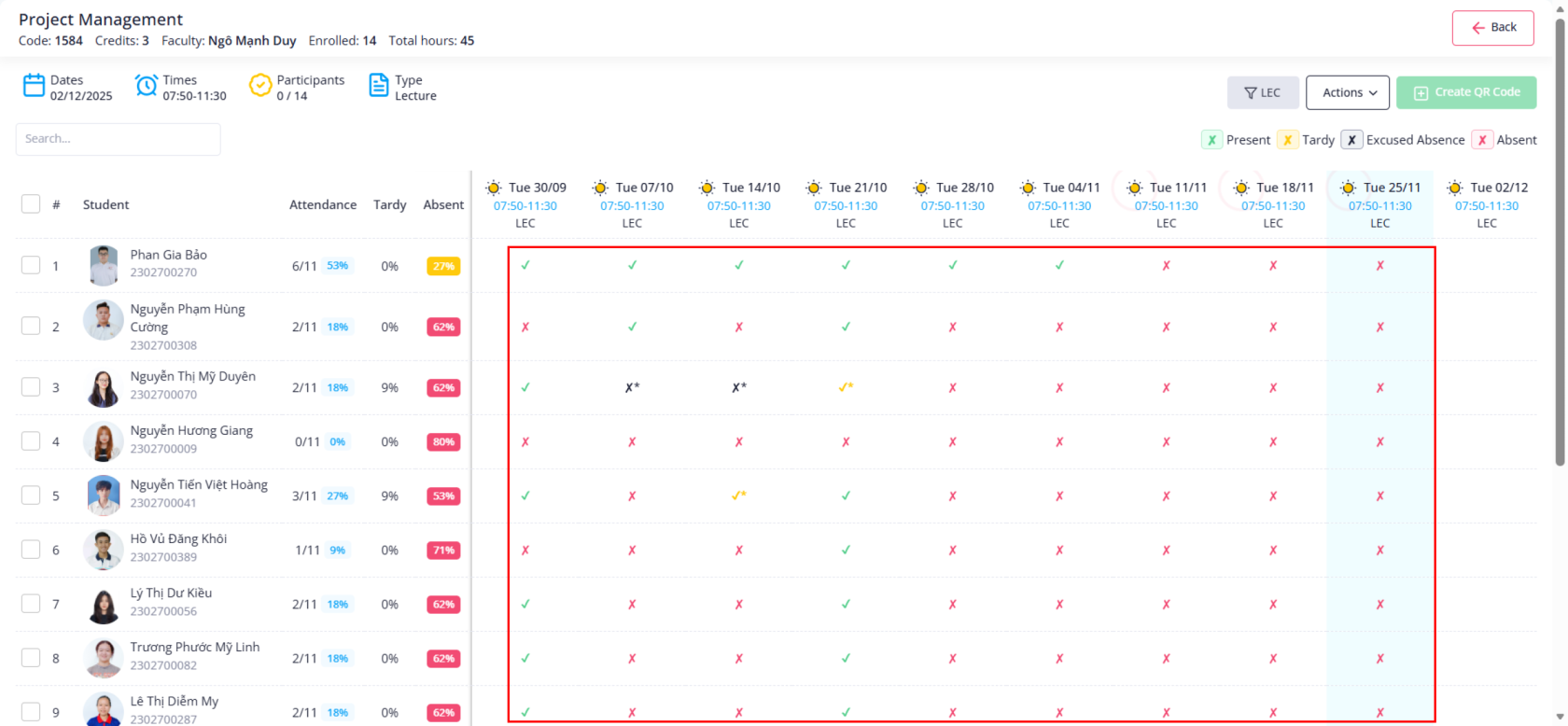](https://kb.umt.edu.vn/uploads/images/gallery/2025-11/YZnSOKvb4k0Mexhu-image.png)
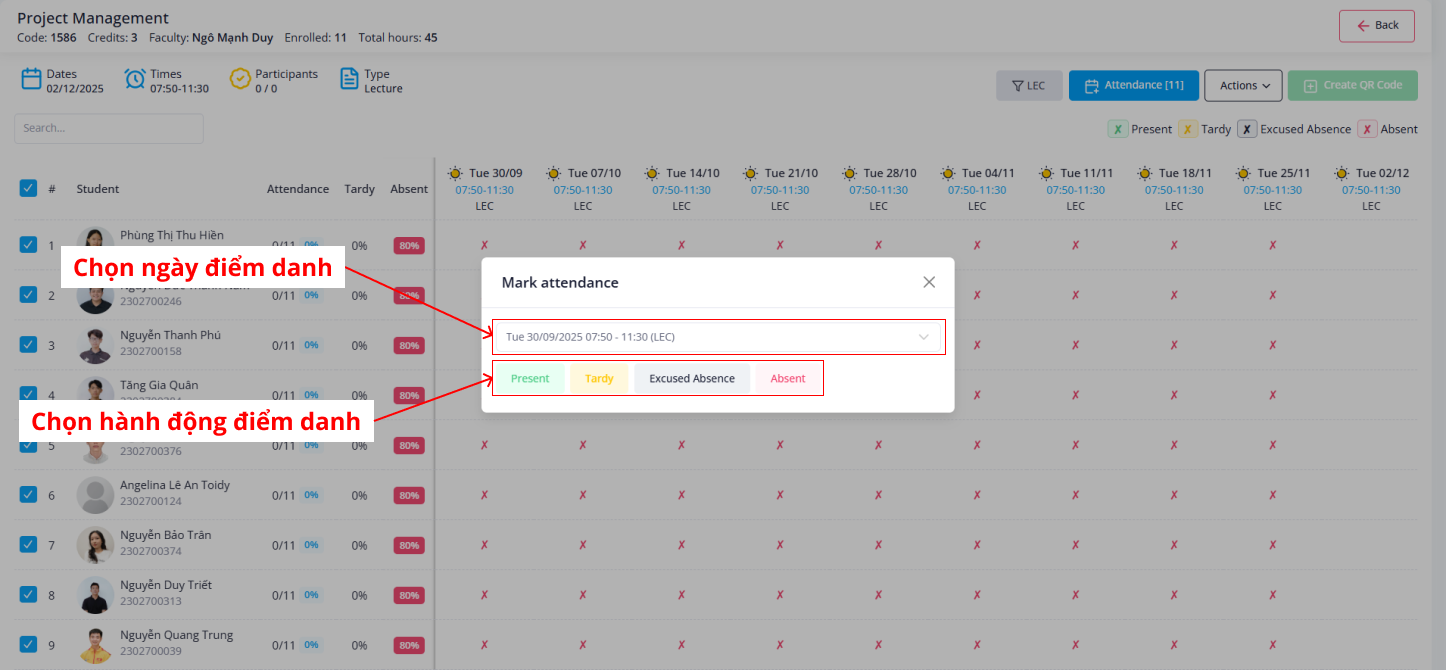
**Bước 4:** Hoặc chọn vào dấu tích để điểm danh hàng loạt => Chọn **Attendance+** ở góc phải màn hình Xuất hiện hộp thoại => Chọn ngày cần điểm danh và chọn hành động điểm danh.
[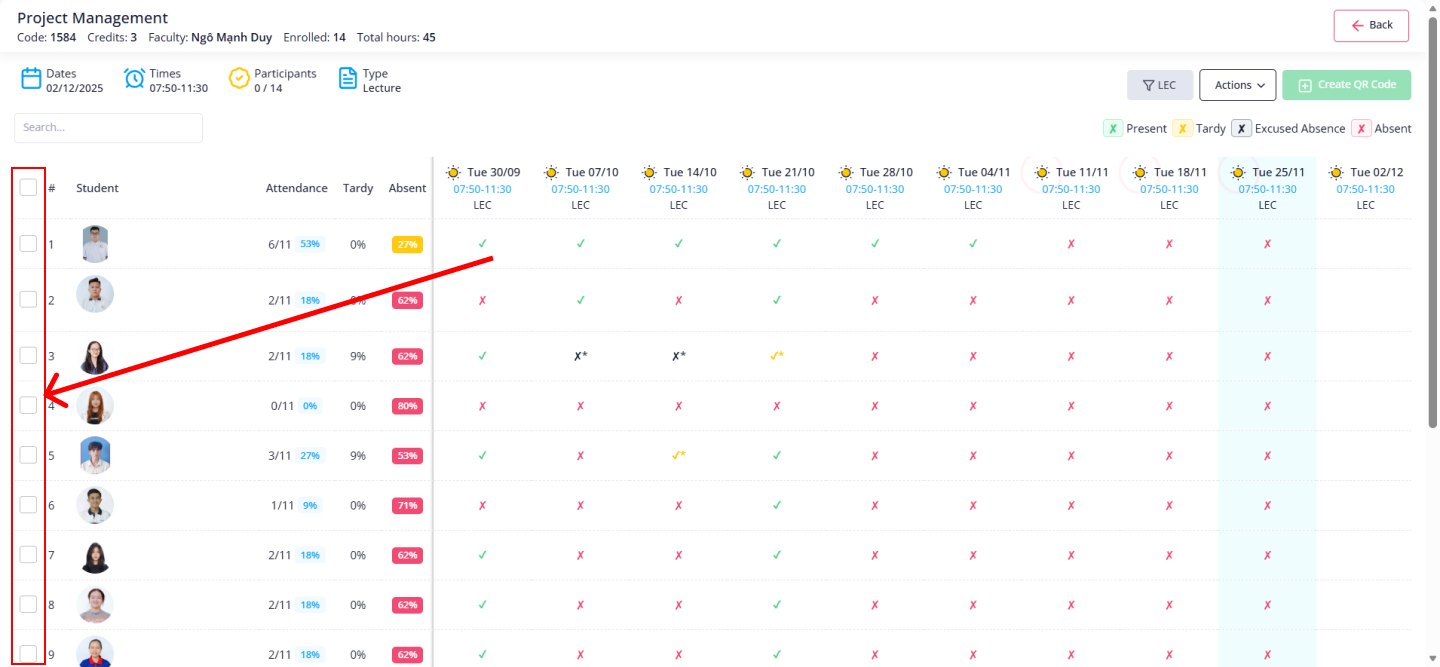](https://kb.umt.edu.vn/uploads/images/gallery/2025-11/9FfYXgqnsKIz3l8H-image.png)
[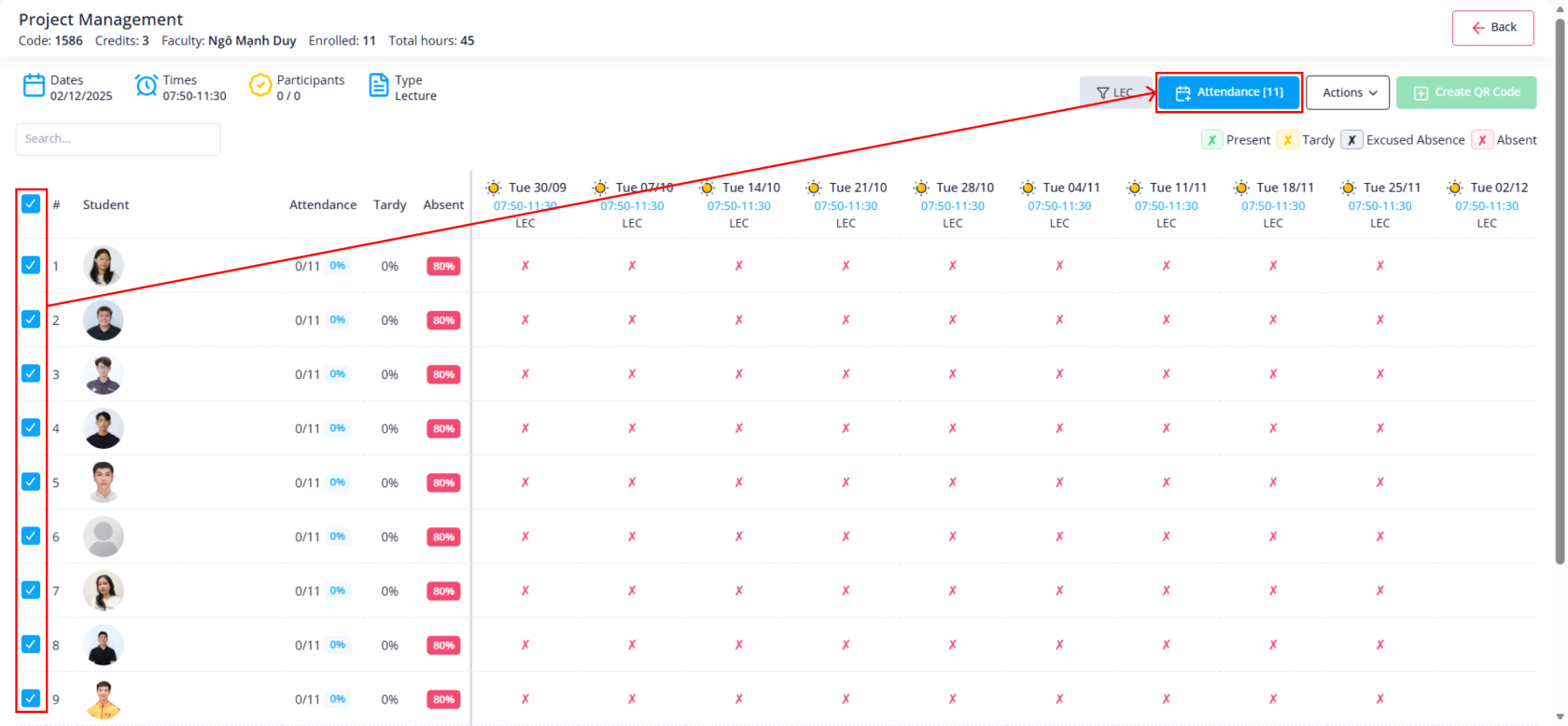](https://kb.umt.edu.vn/uploads/images/gallery/2025-11/aoYNso09yVgzTQqC-image.png)
[](https://kb.umt.edu.vn/uploads/images/gallery/2025-11/4WDVdy65Tc8KXPJ4-image.png)
# TẠO QR ĐIỂM DANH
**Bước 1:** Chọn **Class Roster** ở menu bên trái
[](https://kb.umt.edu.vn/uploads/images/gallery/2025-11/1q2zmCWiUiTeZEml-image.png)
**Bước 2:** Chọn vào lớp bằng cách ấn nút [](https://kb.umt.edu.vn/uploads/images/gallery/2025-11/AxQO1a4cHJcp5WCf-image.png) ở bên cột **Action**
[](https://kb.umt.edu.vn/uploads/images/gallery/2025-11/vnoBoybXoI6AJtDo-calssr1.png)
**Bước 3:** Chọn **Create QR Code** =>
*Lưu ý: Chỉ trong giờ học mới tạo được QR code*
**Bước 4:** Sau thời gian 15 phút thì mã tự động hủy. Hoặc giảng viên có thể hủy bằng cách ấn vào nút X
# ĐIỀN ĐIỂM
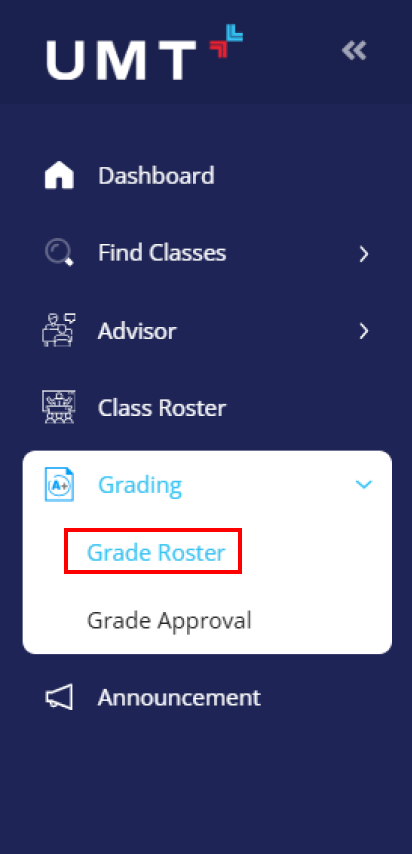
Bước 1: Chọn **Grading** => Chọn **Grade Roster**
[](https://kb.umt.edu.vn/uploads/images/gallery/2025-11/U6lfyQ74fNMIwifH-image.png)
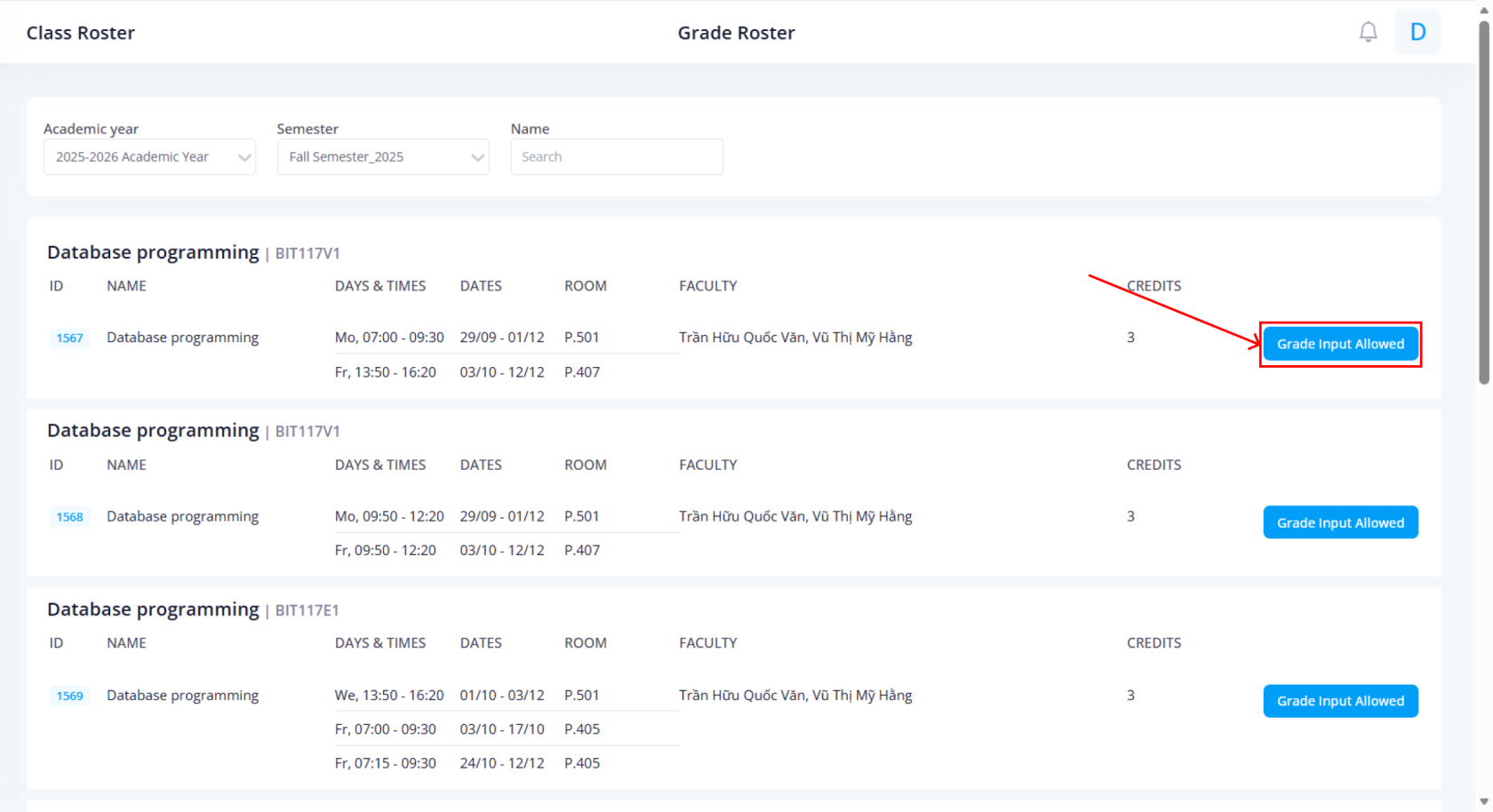
**Bước 2:** Chọn **Grade Input Allowed** để điền điểm số của lớp học đang chọn
[](https://kb.umt.edu.vn/uploads/images/gallery/2025-11/Rd6pmlqM21z5vhyp-image.png)
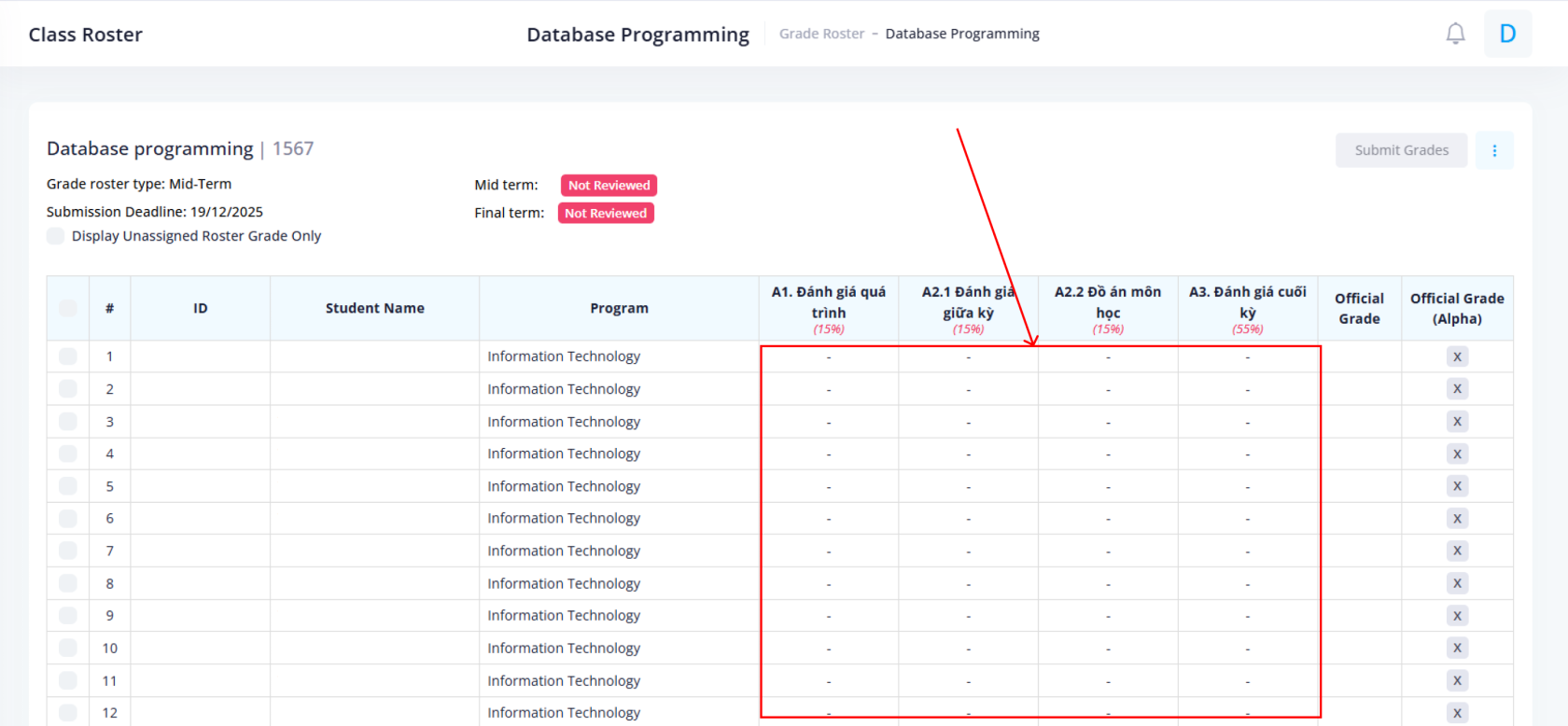
**Bước 3:** Điền điểm thành phần
[](https://kb.umt.edu.vn/uploads/images/gallery/2025-11/nkb5cMDc2ZXrPzMs-image.png)
**Bước 4:** Khi điền các điểm thành phần.
- Nếu đã nhập đầy đủ các điểm thành phần giữa kỳ/cuối kỳ => chọn **Submit**
- Nếu nhập chưa đủ điểm thành phần => Chọn **Save Grade**
[](https://kb.umt.edu.vn/uploads/images/gallery/2025-11/GP0XahcZOtnAQEiO-image.png)
# DUYỆT ĐIỂM
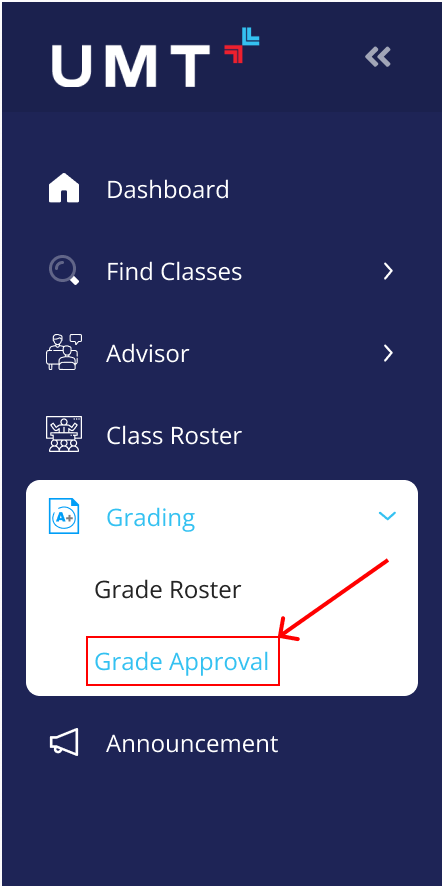
**Bước 1:** Chọn **Grading** => Chọn **Grade Approval**
[](https://kb.umt.edu.vn/uploads/images/gallery/2025-12/QyYilhRhNGECxjlt-image.png)
**Bước 2:** Chọn học kỳ cần duyệt điểm
[](https://kb.umt.edu.vn/uploads/images/gallery/2025-12/BmoiSqCmkpJJoCJZ-image.png)
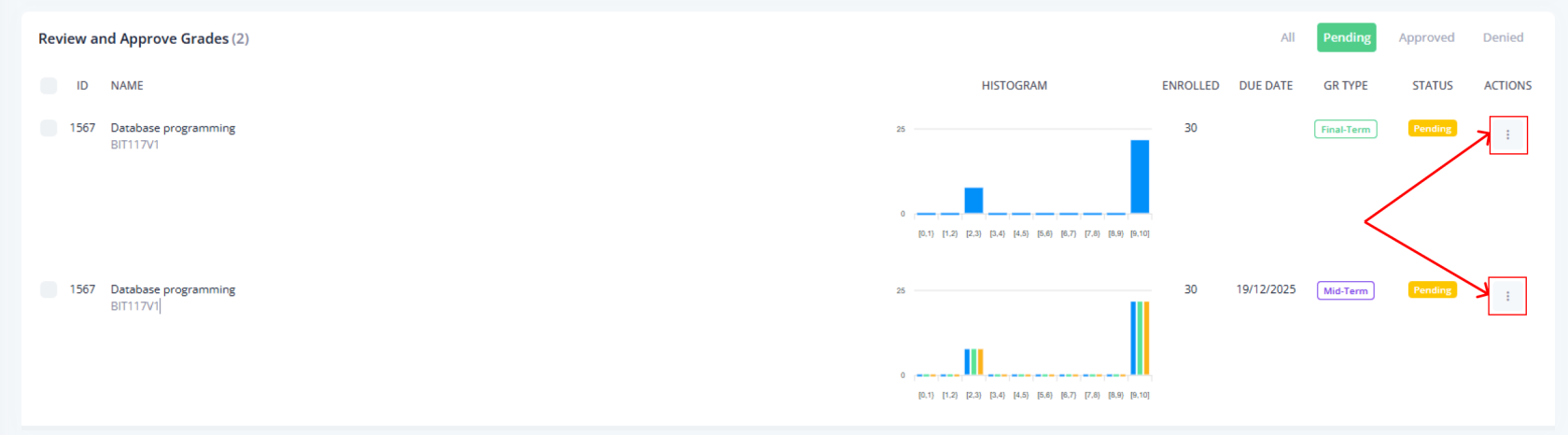
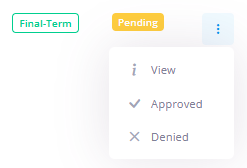
**Bước 3:** ở cột **Action** => chọn hành động :
- **View**: xem chi tiết điểm của lớp học
- **Approved**: Đồng ý
- **Denied**: Từ chối. Cần viết lý do
[](https://kb.umt.edu.vn/uploads/images/gallery/2025-12/yIQF9eQ2n3uLhb1P-image.png)
[](https://kb.umt.edu.vn/uploads/images/gallery/2025-12/OySWInblQCoXsdDc-image.png)
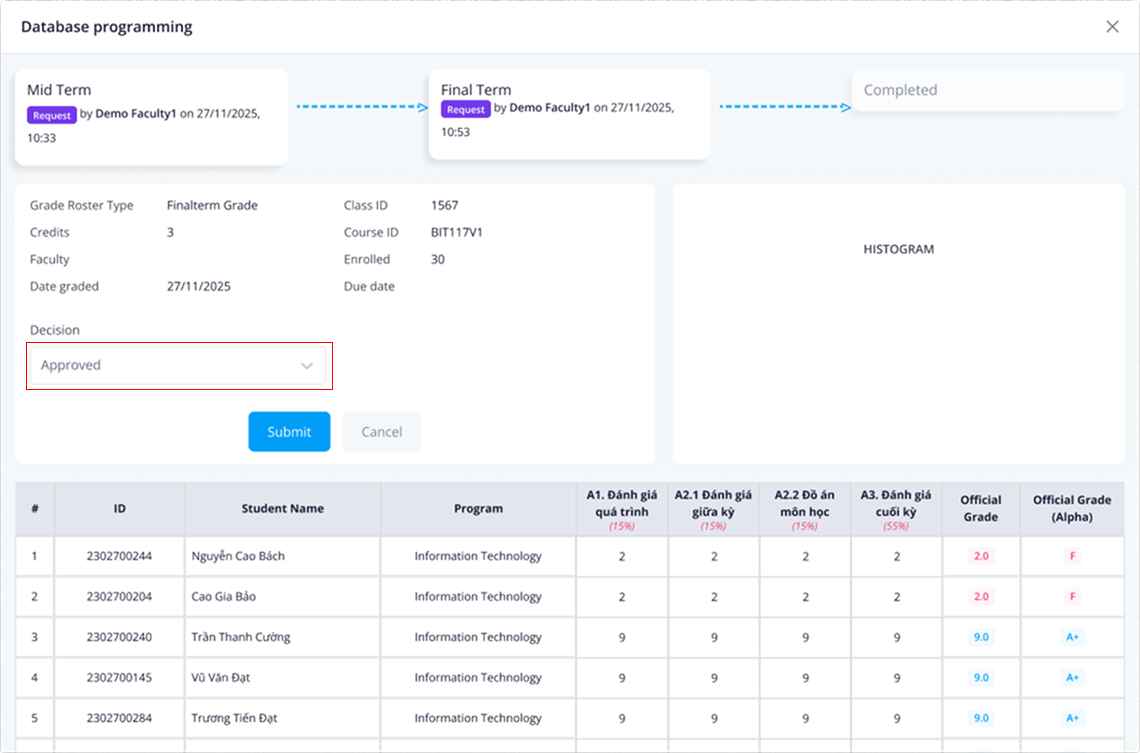
**Bước 4**: Trong chức năng **View** => tại Decision chọn **Approved** hoặc **Denied**
[](https://kb.umt.edu.vn/uploads/images/gallery/2025-12/HYrZyNW3hvDxwFEI-grade-approval.png)
# CỐ VẤN HỌC TẬP
Bước 1: Vào **Advisor** => chọn **View Advisees**